
- You are here:
- Home »
- Phones & Android
Category Archives for Phones & Android
How to get Android N update right now?
Google is rolling out Android Nougat (Android N/ Android 7) update to eligible devices and as expected Nexus devices will be the first ones to get this update. All other devices may have to wait for a mercy of their device manufacturers and carriers and only god knows when they will get the update.
Lucky are the folks who have not so old Nexus devices (Including me, hooray Nexus 6!). However, there is some painful wait time even for eligible devices and I have learned hard way that even that can take forever. So here is how to get your Android N update on eligible devices NOW if you do not want to wait and… wait!
A quick summary of changes in Android N:
- Expanded emoji: Now over 1,500
- Multi-locate support: Apps can tailor their content based on your locale settings. So if you speak multiple languages, for instance, then search engines can show results in each of those languages
- Quick Settings controls: You can now control what tiles go where, and move it around
- Direct Reply: Reply directly to notifications without having to open any app
- Multi-window: Run two apps side-by-side. The windows are resizable, too, by simply dragging the divider
- Quick Switch: Switch between your two most recently used apps by simply double tapping the Overview button
- Support for VulkanTM (an advanced 3D rendering API) and Daydream (Google’s platform for mobile virtual reality)
-
Seamless updates: New Android devices with Nougat can install software updates in the background which means you won't have to wait while your device installs the update and optimizes all your apps for the new version. And for current Nexus users, software updates now install much faster, so you won't have to wait for minutes while your device reboots
- “Google, Now for God’s sake, can you at-least figure out how to actually update all Android phones?”
- Direct Boot: Direct Boot helps your device startup faster, and apps run securely even before you unlock your device when your device reboots
We've reports of Nexus 6P getting the upgrade. You can always wait until your device receives the update over the air, but if you don't want to wait, you can get Android Nougat right now – here are the instructions.
There are the supported devices for Android N update:
- Nexus 6, 9, 5X, 6P
- Nexus Player
- Google Pixel C
- Android One
How to get Android N right-now on eligible devices?
Devices that are currently enrolled in the Beta program are the first to receive the stable version of Android 7.0, and the opt-in process is fairly easy.
- Head to Android Beta program
- Sign into the Google account associated with your eligible phone
- Scroll down to Your eligible devices
- Find the device you want to enroll in the Beta program and tap Enroll device
- Follow the prompts to accept the over-the-air download
How to Manually Update your Nexus devices?
Check out my earlier post for instructions on how to Manually updating your Android devices to Android 6. You can still follow same instruction but need to wait for Android 7 OTA zip file to do so. I will post new link for Android 7 OTA zip once I have one.
You can find the latest Android Over-The-Air (OTA) update .zip files here to manually download it and then follow the instruction given here to update the device.
Good luck!
How to get Windows 10 phone update on your old Windows phone
If you are running old or lower end Windows Nokia Lumia phone and wonder how to get the latest Windows 10 phone build from the Microsoft, you are not alone. We have a Windows phone in my family and I wondered how to get it updated. There may be hard way and hacks to do that but I do not like those ways. I want to update Windows phone the easiest and safest way possible. Here is the how you can do that:
Pre-requisite:
- You are "ok" with the pre-release Windows phone 10 build that may be unstable
- Your phone is running on Windows Phone 8.1
- Your device is listed in the compatible device list here
Steps:
- Sign up for the Windows Insider Program here with your Microsoft email address. I like to signup for the Release Preview. You can opt for Slow or Fast ring as well. However, Release preview will be the most stable of all these pre-release built.
- Download and install the Windows Insider app from the Windows Phone Store
-
Once the App is installed, it will check for the updates and if you are not on Windows 10 build, it will guide you to download and install the latest Windows Phone 10 build
- If you do not want fast and constant updates to your latest Windows Phone 10, uninstall the Windows Insider app and manually re-install when you are ready for the next OS update. Keep in mind that it will not opt you out of Insider program or restore your phone to the Windows 8.1 phone. If you wish to completely go back to the Windows 8.1 phone, you need to use Windows Device Recovery Tool (Google it to find and download the most latest version of this tool)
Enjoy the latest Windows 10 phone build :-)
Forcing over the air (OTA) Android updates (Android 6.0.1) on Nexus phones
Note: This post was written for Android 6.0.1 but it may be universally applicable for all Android updates on factory unlocked Nexus phones.
If you are using Nexus devices and you are not receiving Android updates on time or monthly security patch, you probably are using it on AT&T or one of its MVNO such as AirVoice or H2O etc. I am using Nexus 6 on AT&T network and I did not receive over the air (OTA) update for Android 6. I had to manually update my Nexus 6 to Android 6. Please check out my earlier post for step-by-step instructions to update your Nexus to official Android 6 if you have not yet received OTA yet.
It was very annoying that my Nexus 6 did not receive any security patch for last 3 months nor did it received Android 6 / Android 6.0.1 over the air updates. It forced me to do something or find the root cause since I was thinking Nexus 6 would be receiving updates directly from the Google and in almost no time!
It turns out that the culprit is the AT&T. It takes forever for AT&T approve any OTA updates even for Nexus devices. Any Nexus device on AT&T or it’s prepaid operators (MVNO) would have significant delays in receiving OTA Android updates. As I said, I am not even getting monthly security patch on my Nexus 6. The workaround is extremely simple. I even think that exactly same workaround may have triggered OTA Android 6 update and I could have saved a lot of time by not doing all the research and manual update work. Anyway, without further delay, here it goes:
Pre-requisite
- You are using Nexus devices (Nexus 6 in my case) on AT&T network either directly through AT&T or through it’s prepaid service providers
- Your Nexus 6 is already running Android 6. If not, try to use this trick and it may force Android 6 update (I have not confirmed this but I seriously think it would do the trick). If you still do not get Android 6 update over the air, use my step-by-step tutorial to update your phone manually to Android 6.
How to force Android 6.0.1 on Nexus devices running on AT&T, AirVoice, H2O or any other AT&T MVNO
- The trick is, simply, insert any non-AT&T sim (T-mobile/ Verizon or any other non-AT&T sim). It may not need to be active. Just a sim even if inactive. In my case, I inserted Verizon Sim that I had in my drawer. If you do not have a non-AT&T sim, borrow it for few minutes from friends but just bu a cheap sim from Ebay for long term use.
- Restart the phone
- Make sure you have active WiFi and your phone is connected to the internet through your WiFi
- Check for the updates in your phone as you would normally do by going into Settings > About phone > System updates
- It may take few minutes or few attempts to trigger the update. Try few times and wait. In my case, it triggered the update available prompt in a minute and in no time, I was downloading Android 6.0.1!
- Update the phone by following the prompt
- Once updated, try again and check for the updates again. There may be several security patch updates that you may have not received. I end up updating the phone twice
- You do not need to wait to complete the update to remove the Sim and re-insert your original Sim, but I do recommend you wait and attempt few System updates to make sure you are fully updated
In the future, when you do not receive the OTA update on time for Nexus 6 or any other Nexus devices, use this trick and insert non-AT&T sim and force the update if it’s available.
Evolution of Google Nexus phones
Google has recently announced and released Nexus 5X and Nexus 6P, two brand new phones for its Nexus lineup. Google Nexus phones have always confused me regarding which one is the new and which one was release at what time. The Nexus phone’s naming convention has been poor and confusing making it hard to keep track of its evolution. So, I decided to put out a brief post that can help track the evolution of Google Nexus phones till date.
Google Nexus lineup has been a key driver for the growth and pace for the Android world. Therefore, this evolution can also serve as a guide to reflect upon the overall evolution of phone technologies in Android world from 2010 to 2015.
|
Name |
Year |
Manufacturer |
Android Version |
|
Nexus One |
January 2010 |
HTC |
2.1 (Éclair) |
|
Nexus S |
December 2010 |
Samsung |
2.3 (Gingerbread) |
|
Galaxy Nexus |
November 2011 |
Samsung |
4.0 (ICS) |
|
Nexus 4 |
November 2012 |
LG |
4.2 (Jelly Bean) |
|
Nexus 5 |
October 2013 |
LG |
4.4 (KitKat) |
|
Nexus 6 |
October 2014 |
Motorola |
5 (Lollipop) |
|
Nexus 5X |
September 2015 |
LG |
6 (Marshmallow) |
|
Nexus 6P |
September 2015 |
Huawai |
6 (Marshmallow) |
Looking at the evolution table, my first impression and general belief was wow; the smartphone has been evolving at so much paces. Being critical of common wisdom, I decided to take a closer look for features and updates to see what has been actually evolved? In today’s marketing world, it’s easy to lose track of actual evolution as so much hype has been created for nothing but pure marketing purpose (Blame Apple here). Below is my take on the actual evolution of key features on nexus phone:
-
Storage
It has not been evolved in general. SD cards were available in 2010 and are still there. We still pay a lot for storage updates in Nexus or iPhone series because cheap SD card is unsupported in these so called premium phones for no apparent reasons. I attribute this failure to the arrogant manufacturers.
-
Screen quality
Screen quality and resolution, in particular, has been evolved very significantly. Primarily due to the advances in TV technologies simultaneously. I credit LG for pushing extra high-resolution screen in G3 that created recent resolution race. Regardless, it has been evolving through every upgrade.
-
Battery life
Overall no change. As device gets- bigger display, more features and usage that use more processors and RAM, pure battery capacity needed to be updated. So it was updated accordingly. However, it has not changed too much ultimately for the end-user. We almost had similar or even better battery life on feature phones.
-
Camera
Camera quality and innovations in phones have been outstanding and it has evolved significantly. IT’s probably the most significantly evolved part of today’s smartphones. Use of Phone cameras is increasing every day. I believe that this trend is one of the significant contributors of increasing popularity of DSLRs since regular digital cameras are almost displaced by phone cameras and feel like unnecessary middle size cameras that if any, it has only marginal real advantages over phone camera.
-
Processor, GPU, RAM (Horsepower)
Processors and GPU are evolving and getting more powerful and efficient, every upgrade in the phone. RAM is also increasing every upgrade in terms of capacity and efficiency. Does this mean that every OS update needs more Horse Power? I do not know for sure although manufacturers always claim that new upgrade speeds up the devices. How much for real this benefits user is a question as it may just benefit OS more than the user?
-
Hardware Technologies
Updated hardware – NFC, Wifi speed, Connectivity, Cellular technologies, GPS, Bluetooth updates, etc are all been evolving but not at a significant pace to feel it in my day-to-day life, except for a real hardcore high-speed fans. For me, I see only marginal evolution here. These technologies have not really made much difference in my day-to-day usage or user experience.
In conclusion, there are only a few things that have made a significant difference or improved my day-to-day user experience. The full price of the device is overall similar although it’s lot more powerful today than it was ever before.
How to stop phone Mucis app from auto playing when connected to the car using Bluetooth
My android phone is connected to the car through Bluetooth and I use it to play music and make/receive calls over the hands-free system of my car. I appreciate and enjoy this feature so much that I consider it a must-have feature. However, it always auto-starts music when my phone establishes a Bluetooth connection with my car or whenever I end a call, even if I was not playing the music before I placed the call.
This is very annoying and I could not find an easy solution for that. I could not make any setting changes in my car that can resolve the issue. I think the settings and controls are limited in car system and on the other hand, this is not an issue with your Android phone so cannot really blame Google.
It got so annoying that one day I decided to find a solution for this and searched internet and forums and tried out several options. After the serious struggle, I found a simple and easy solution that just works perfectly for me. It may sound so simple but trust me, it was hardest to find and resolve.
Solution:
-
Head over to Google Play Store and Install Disable Auto Play app
-
Open the App and Disable Media Button
-
-
Head over to Google Play Store and Install Media Button Router app
-
Open Media Button Router
-
Check Enable (First option)
-
At the end, there is "Apps to Show in the selector section", make sure DisableAutoPlay is checked
-
Drawback: You may need to start the music from the phone as it will disable media signal from the car.
That’s all you need. This is not as clean as if there is an option in your car, but will work wonderfully.
How to manually update Nexus 6 to OTA Android 6 Marshmallow using Windows 10 PC
Disclosure: As an Amazon Associate, Unwrittens earns from qualifying purchases. This never changes what we recommend.
Update: If you are looking to find instruction on How to update your Nexus to Android N right now, Check out the most latest post here
As I wrote in my previous post that Nexus 6 is the best phone for the price to buy today and a serious bargain is going on at Amazon to grab your Nexus 6 at a great price. You can get a great phone for the great price and also use the latest and greatest Android on it always since it would always run pure Android straight from the Google. That’s a great deal.
Google recently released latest Android 6 Marshmallow OTA update for Nexus line, but it may take some time to get to all the Nexus owners. I spent a serious time recently updating my nexus 6 manually to the Android 6 Marshmallow. There are many online articles that I read and tried to use information from, but neither got me to the end individually. I had to spend time researching problems and thinking about which article to actually follow completely. Now that I have done all and successfully updated my Nexus 6, I think there are many other new users that may benefit by my experience. Of course, hardcore users may have different methods or better way, but this information will primarily benefit relatively less tech savvy Nexus users.
Although I used this method for Nexus 6, it may be also applicable for other Nexus devices if the factory version of OTA update.zip is available. The process may be similar or almost similar for other Nexus devices.
This guide is for non-root, non-flashed nexus 6 running factory version android to update to the latest OTA Android 6 factory image.
Let’s begin.
Step 1: Install Google USB driver/ ADB driver in your Windows 10 PC
This is the most critical step as I followed many articles but failed to get Nexus updated by some reason or not communication. Usually, this step is not emphasized in other articles. I learned it the hard way.
Windows 10 might have something different compared to other windows version as I had difficulty installing the driver and online guides did not really helped clearly. After several failed attempt to install it along with Android SDK and then other unsuccessful attempts to install it manually in Device Manager Directly, Here is what worked for me.
-
Download Google USB driver from Here
-
Unzip the downloaded driver
-
Restart PC
-
Enable USB debugging in Nexus 6. If you don’t know, google it
-
Connect the Nexus 6 with the PC with USB cable
-
Go to the Device Manager
-
There was new device something like ADB device or a like
-
Right-click on the device > Update the Driver Software > Browse My Computer for Driver Software
-
Browse to your driver folder that if you did not change default should be ………………\latest_usb_driver_windows\usb_driver
-
Click next and follow instructions to install it
-
Disconnect the device and reconnect
-
Check the Device Manager again in the PC. This time, I see Nexus 6 in the Device Manager instead of that ADB device. Follow same steps again to install the same driver again
-
After it got installed, I show a message pop-up in the Nexus about some keys that I OK in the phone basically to trust the PC for debugging.
Step 2: Download and Install ADB and Fastboot
Although, this can be achieved by installing Google SDK, I followed simple and less space consuming approach as follow:
-
Download Minimal ADB and Fastboot from Here
-
Start Install by double clicking. When it ask you of the folder it will install, create or point to C:\ (Note: This will create Minimal ADB and Fastboot folder in the C drive. The folder creation step is not necessary but good for the simplicity and easy to browse and remember for the later stages)
-
Complete the installation
-
Go to the Minimal ADB and Fastboot folder on PC
-
Double click MAF32 to start CMD in the folder ADB and Fastboot are
-
On the command prompt type following two commands to make sure ADB server is running
-
-
C:\Minimal ADB and Fastboot>ADB kill-server (This will kill the ADB server)
-
C:\Minimal ADB and Fastboot>ADB start-server (This will start the ADB server)
-
-
Step 3: Download the Android 6 Over The Air (OTA) update file for your device
First make sure which firmware version of the Android you have. I had Project Fi version LVY48H so I downloaded the last one from Nexus 6 list for Project Fi.
-
Download the most appropriate Android 6 OTA update file from the Android Central Here
-
Place the downloaded .zip file into the ADB installation folder. If you followed my steps, it would be at C:\Minimal ADB and Fastboot
Step 4: Nexus 6 in Recovery and ADB mode
Make sure you have USB debugging enable before proceeding.
-
Power off the phone
-
Press and Hold Volume Down and Power Button together until it powers on
-
Once boot menu appears, press Volume Up button few times to get to Recovery screen
-
Once Recovery appears, press the power button to select it
-
Android logo with error mark will appear
-
Connect the phone to the PC with USB cable
-
Press Power Button and Volume Up key to get to flash or recovery mode. This is tricky and needs several attempt before it actually works. Sometimes it doesn’t work and will simply turn on the phone. If it turns on the phone, start step 4 from the beginning and try again until it works
-
Once successful, it will go to Recovery mode and Flash mode and you will see several options
-
Select the second option from the top (ADB flash something)
-
At the bottom of the phone screen, you will be able to see that phone is waiting to be updated through PC using ADB and will even suggest command to use
Step 5: Flashing Android 6 image using ADB
-
Go to the Minimal ADB and Fastboot folder on PC
-
Double click MAF32 to start CMD in the folder ADB and Fastboot are
-
On the command prompt type following two commands to make sure ADB server is running
-
-
C:\Minimal ADB and Fastboot>ADB kill-server (This will kill the ADB server)
-
C:\Minimal ADB and Fastboot>ADB start-server (This will start the ADB server)
-
-
-
Above steps are repeated but necessary to make sure ADB is still running
-
Now it’s time to flash the update file with the following command
-
-
C:\Minimal ADB and Fastboot>adb sideload <update OTA filename.zip>
-
OTA Update zip filename was really long and I did not change it, but CMD will auto fill it once you type few first letters and hit Tab
-
If no error appears, you would see the progress already
-
-
-
At this step, I had encountered an error: device ‘(null)’ not found. By the very hard way, I figured it was due to USB driver issues and I had to investigate all over and also question my method of flashing. That’s why I put on it as a first step. However, if you still get this error, you have USB driver issue and work on it to resolve and re-do everything again
-
Now seat back and track the progress in the PC as well you would be able to see update happening on the phone screen
-
Once it’s complete, press power up button in the phone and select Reboot option (The first option in the menu) and press the Power button to reboot the Nexus 6
-
Upon restart, it will update apps and will refresh the system. It may take some time, but you will be on Android 6 Marshmallow
Congratulations, you have just updated your Nexus to the latest and greatest Android 6 Marshmallow. Now, it’s time to explore Android 6 and figure out what you like or don’t like about it. So, if you don’t have Nexus 6 already, get it now from the Amazon today and enjoy the latest and pure Android on it.
Here Maps by Nokia is the best free offline navigation and maps app
Navigation and Maps is one of the key features in any smartphone today. Although we can debate how often we should be relying on it, it is one of my most used features. In my family I know peoples who cannot survive without Navigation or GPS even for their routine commute and we often debate about improving our understanding of maps, at least of our surrounding and the area that we live in and drive by every day. In general, we are now more and more relying on it to get us to anywhere that is not our everyday destination (Home/Office/Supermarket). There are a number of great apps available, but Google Maps and Navigation is the king of all. It is not a coincidence since it is the best navigation app out there and is most reliable and user-friendly. Attempt by Apple to create a competitive product for iOS platform has not yet as successful as they had hoped for indicating that it takes a significant time, effort, and expertise to create a mature and reliable navigation app. There is no shortcut.
Let me first discuss few things about Google Maps. It is the best for sure. Below are key points that favor the Google Map and Navigation:
-
It really works reliably and will take you to your destination for sure.
-
It has a ton of information that no one else has.
-
It has a very good in-route updates for traffics and alternative route feature that will suggest better or alternative route while you are already driving on your selected route.
-
The app is loved and used by probably millions of people everyday that strengthen it’s ability to predict and increases the information Google has every second.
-
It really doesn’t consume as much data as you might think. In a normal month, I get by with 500Mb cellular data (Excludes WiFi) on the phone that I primarily use for Emails and Navigation and few messages on WhatsApp.
So if the Google Map is really the best app, why do I need another app? Below are key points that made me keep an eye on alternative app:
-
I may run out of the data on the trip that will leave me stranded somewhere without any idea where to go (As I travel unknown places/routes). Not only it will cost me in time but is also a safety issue since I travel with family. Sometimes my wife is traveling alone with limited data to new places and I do not want her to be stranded at an unknown location without knowing the way home back.
-
Other way around. Sometimes, I do not have network and therefore no access to the data to re-route to my destination of interest if it has changed or simply I need to get navigation up but no cellular network to get it going!
-
Sometimes I travel internationally and I have no maps or internet or cellular service active immediately. My phone is always with me so handy map on the phone can be very useful.
Now that we know pros and cons of Google Maps and Navigation, the question is that which alternative navigation and maps app that I can keep installed on my phone all the times?
There are many free navigation apps in the android. I will not go into the details of each and review them as you can easily find specific reviews on the web. Some of them are Nokia Here Maps, Waze Community GPS, TomTom GPS Navigation, MapQuest, NavFree USA etc. Each app has unique strengths and weaknesses. Some also have limited capability for a free app and if you need full, you need to pay for it. After going through few apps and using them, I have concluded that Here Maps by Nokia is simply best of all for completely free. It is the second best choice you can have and can easily be your first choice. It will definitely need some getting used to.
Here Maps by Nokia
Here Maps by Nokia is around for a very long time and is a really matured application. Although Nokia is not a very popular brand in the United States, It is highly respected around the world. It has built its reputation on it’s extremely durable and dependable cell phones- well before the rise of Apple and Google in the cellphone industry. Many folks discuss that Apple should/ might acquire Here Maps to compete with Google as basically Nokia is not doing great in its mobile business anymore and might just sell Here Maps. Whatever happens in the business side is of no interest for me here except that I do want Here Maps to be available free for me on Android and Windows Phone.
One reason for my familiarity and love to Here Maps is because I used it on my wife’s Lumia Phones that I basically bought to use it as offline navigation that just works and can work anywhere. In fact, Here Maps was a reason I bought and tried out Windows Phone that my family uses to date as a primary phone. I will not go into Windows Phone today as its topic for some other time. But, when I show that Here Maps is now available to Android, I was delighted and got it set on my Android instantly. No brainer.
Key points that I like about Here Maps are summarized below:
-
It really works. I can count on it to get me to my destination.
-
It can work 100% offline once you setup and get maps that you need.
-
You can precisely and only download the maps that you need. It will save a lot of extra space on your phone. For example, I downloaded maps for about ten US states that I travel and is around me. That way, I do not need to save entire US maps on my phone all the time. If I will need to travel some new places, I will get a specific map that I need and I will be good to go.
-
It has really quick re-routing. If you miss an exit, it will calculate a new route in almost no time. It’s probably because it has the entire route map pre-downloaded! I will even say that in general, it is the fastest navigation and maps app I have used.
-
Has most features from Google Maps and some more – Speed Limit Warning and Avoid Toll are two my favorite.
-
The user interface is very responsive and Application has not ever crashed on me yet. I have to admit that Google Map has crashed several times and sometimes it has even crashed my phone. I had to pull over to get the thing going as I drive on unknown roads.
Here are few things that I dislike about Here Maps:
-
Here Maps insist on taking U-turn too much when I do not take intended exit. Google somehow has figured out how to avoid/ minimize U-turns when you do not take intended exit. Sometimes, I already know the better route but Here Maps will stick to the U-turn. It’s most irritating behavior of the application and I hope it gets better. I suspect that Google Maps application is more intelligently written compared to the Here Maps. I am not sure, but it is possible that Here Maps might improve after long enough use that it learns better routes.
-
Google Maps and Here Maps might show different routes for the same destination. I have found that Google Maps routes to be better or the one that I will use more frequently. Again, it might be because Google knows me for a long time while Here Maps doesn’t. To note that Here Maps does still a great job and will definitely take you to the destination but probably with little less smartly.
-
Of course, Here Maps doesn’t have the power of the information that Google has. It will be noticeable when you search for a destination in the maps. If you know the address, you will have no issues, though.
Overall, I think the issues are just because of it being a different app and not really the fault of Nokia. Here Map is already mature and keeps getting even better. Here Maps is a must have navigation app even if you are using Google Navigation. Here Maps is the one app that really wants to keep handy, specifically whenever my family or I travel new places. Although it will need some getting used to, I am convinced that Here Maps is the best free offline maps and navigation app out there and is available on all popular devices- Android via Play Store, iOS via iTunes, and usually pre-installed on Windows Phone).
Android 6 Marshmallow: App permission control and Auto-backup are two most important features
I have been using Android phones for a very long time- ever since T-Mobile myTouch 3G was released with Android 1.6. Yes, Android version 1.6. Since then, I have witnessed and experienced all the android changes and updates and have much appreciated them. Android has come a long way and is now really a matured OS. Android 6.0 Marshmallow is the latest version of Android mobile operating system from Google. It brings a lot of under the hood changes and user interface updates. It has a list of new features to its credit and a number of small but usable tweaks. However, two most important and useful features of all are Application permission control and Auto-backup.
I. App permission control
It’s my opinion that Application Permission Control is the single most important feature in the Android 6. Android finally includes comprehensive application permission control that is usable and user-friendly. You do not need to root anymore.
The play store will no longer ask you to agree on all the permissions before you can install an application. Before this, Android had only two choices for you either you agree to all permissions and install or do not agree and do not install! Apps will now ask you when it needs access to specific part of your device (location, camera, storage, etc.) and you can decide to let it use it or deny it. Although the features that rely on that permission might not work, you would be able to control it and the rest of the app will work.
To do this, in Android 6.0 (Marshmallow), Open the Settings app and tap “Apps” under the Device heading to get started. You will see a list of all the apps installed on your phone. Tap one of the apps in the list to view more information. On the App info screen, you’ll see a “Permissions” category that lists all the permissions that individual app has access to. Different categories of permissions each app has — for example, Location, Storage, Camera, Contacts etc. — will be displayed here. You can revoke any permission you want from Android 6 phone.
II. Auto-backup
It is difficult or complicated to switch android phones although few years’ back Android added auto-backup functionality to make it a bit easy by automatically installing apps that Google know that have been there in your old device. You still need to make a lot of changes and setting updates in your new phone that takes too much time sometimes it will take as much as a week to get back to normal after a phone change.
Android 6 has now a much improved auto-backup functionality. Android 6 (Marshmallow) will automatically backup and stores a lot more thing in your Google Drive. Every 24 hours, it takes all your apps data, including user preferences, and uploads it all into your Google Drive. It stores all your call logs and Wi-Fi passwords, too, and none of that data will count toward your Google Drive storage quota. The system decides what to backup- basically all the files in the data folder, and it works for most apps. Apps are limited to 25MB of backup data. Side-loaded apps and even apps installed from third party stores can also make use of the backup service, as it is not tied in directly with Google Play. A much-needed feature that will now ease phone switching for Android users.
Best prepaid cellphone services (AirVoice wireless, H2O wireless, Page Plus cellular)
In my last post, I wrote about my recent recommendation of best phone deal out there today on Nexus 6. As I explained, I am a big fan of prepaid cellular service / no-contract cellular service. I have been using prepaid/ no-contract model since 2010. In my prepaid journey, I have tested several services and ported my number multiple times. I decided to put on few key points based on my experience.
First, not many people really know that there are over 200 prepaid service providers exist in the USA! A Wikipedia article has a really good table that summarizes them all. I highly recommend you to take a look at the table there. All of these providers are virtual as they use one of the four major networks for their service – AT&T, Verizon, Sprint, and T-Mobile. Some of them even use two networks for different plans. They are also referred as a mobile virtual network operator (MVNO).
-
Stick to AT&T and Verizon MVNOs
This is a first tip that I give to all my friends. There are a number of reasons and it gets really complicated when you are choosing between all four major networks when you sign up for a two-year contract. The deal depend on phone/ up-front price / service availability/ your own preferences/ plan choices and it’s suitability for your need / family or friend’s recommendation/ etc.
Thanks to the T-Mobile’s aggressive push for no-contract cell phone service, mainstream providers are also slowly moving toward no-contract service but overall it’s still not there as well general peoples are still less aware of no-contract options.
Primarily, when one sign-up for contract service, the price is a most important factor that is highlighted by Sprint and T-Mobile. If you are in the good network area for these two, you can generally get a better deal on contract cellphone services with them compared to big two – AT&T and Verizon. However, in the prepaid category, there is no such advantage for getting into T-Mobile or Sprint MVNO since essentially you would pay a very similar price but get an inferior network. There is a prepaid service that will fit your need and price-range and use the network of your choice from any four (AT&T, Verizon, Sprint, T-Mobile). Therefore, when in the market for pre-paid service, stay with AT&T or Verizon MVNOs for the best network experience at no significant cost difference.
-
AirVoice wireless or H2O wireless is best pre-paid service that uses AT&T network
At the moment, I personally use AirVoice wireless monthly plan for my family. But you can also opt for H2O wireless for equally good service. Both MVNOs are around for long enough and provide adequate features and customer service for your need. Since prepaid plans are changing very frequently for the better, it would be hard to list comparable here since it will change quickly. You can go to their websites for plan details. As of the writing, I use AirVoice wireless $20 and $30 monthly plans in my two lines. The difference is the data as one provides only 100MB and another 1GB but both with unlimited Talk and Text. H2O has several other features mainly international calling that is a great value if you are using it.
Keep in mind that you do need a GSM phone. If you have a phone from AT&T, you do not need to unlock it since AirVoice/ H2O are still AT&T network, it would work right away without any extra work around. You can buy AT&T brand phone from Craigslist/ Ebay/ Brand new unlocked as you prefer. To use the T-Mobile phone or any other non-AT&T GSM phone, you would need to unlock it or just buy factory unlocked version exactly as I bought LG G3 or more recently, Nexus 6.
-
Page Plus Cellular is best prepaid service that uses Verizon network
Page Plus Cellular was the first pre-paid service I used and really liked it so much. I used it for almost 3 years before I switched to AirVoice. Page Plus offers the most reliable network (Verizon) and had the best monthly plan at the time. It is also one of the old MVNOs and has really good community support and user base.
Outdated reasons for my exit from the Page Plus Cellular are as follow:
- International travel creates trouble as my phone would not take other Sim card
-
Using latest smartphones was not supported (Page Plus has now improved on this and does support all latest 4G LTE smartphones)
Since the Verizon now offers 4G LTE phones that take Sim card and is supported by Page Plus as well, both of my reasons to switch out are outdated. My understanding is that you can take 4G LTE phone that takes sim card and pop in any other GSM sim for at least call service. There may still be some hiccups using GSM on it, that’s why I did not think to go back to the Page Plus.
However, if you have Verizon 4G LTE phone and do not travel internationally, you can be best served by Page Plus on the best network (Verizon) in the USA. I think the 4G LTE phase of the Verizon service uses GSM network, In essence, Verizon is CDMA network that is less-preferred outside the USA. I like to now stick with GSM phones and the service for easy portability and simplicity anywhere.
-
Customer service and Community support
Customer service and community support are important features to think about but is not listed anywhere. All three service providers that I recommend (AirVoice / H2O/ PagePlus) are in the business for long enough and have a reasonably good number of users who regularly discuss things on the internet. They may not have 24×7 service center like primary carriers but is good enough. I did not have any issues with any of them in terms of network, customer care, customer care timing and the service it can provide.
Conclusion
-
If you are switching from AT&T/ T-Mobile or prefer GSM network and phones, go with AirVoice wireless or H2O wireless.
-
If you are switching from Verizon or has a top of the line Verizon phone, go with Page Plus Cellular.
-
If you are switching from the Sprint, you would probably need to buy phone anyway since it would directly not work with AirVoice / H2O/ Page Plus. Also, there is no reason to stick with Sprint MVNOs. I highly recommend you to make a choice on technology (GSM/ CDMA) and preferred phone and go with any of the above three MVNOs depend on your network preference.
Nexus 6 is the best phone for the price to buy today (October 2015)
Disclosure: As an Amazon Associate, Unwrittens earns from qualifying purchases. This never changes what we recommend.
Last few days my LG G3 started giving me some troubles that forced me to look for a replacement android phone.
I have been using android ever since it got the first touchpad less phone released, HTC- myTouch 3G on T-Mobile in 2009. Since then, I have done a lot of flashing, rooting and all the fun stuff that android let you do with the phone. I have owned HTC myTouch 3G > Samsung Galaxy S1 > Samsung Galaxy S3 > Sony Xperia Z3v > LG G3. Of all these, the most reliable phone I had was Samsung Galaxy S3. However, LG G3 was the most I liked due to its beautiful display- a primary reason I bought it and love it. But, it’s now time to change. The smartphone market is changing so rapidly and there are just too many choices today.
I do not like to buy discount phones with two-year contract. I have left contracts in 2010 after I completed one for myTouch 3G with T-Mobile. Since 2010, I am prepaid user and have used Page Plus Cellular – H2O wireless – AirVoice Wireless.
I do still like to buy a phone at the bargain price, just not on contract. Several years of experience have thought me that to do that, typically you have to stay one generation behind in the phone. So now I stay a generation behind on cell phones. It allows me to buy the best phone at the best price with well-documented issues and well-developed community support. The price of the top of the line phone drops significantly when the new model is announced.
Nexus 6 is the best phone for the price to buy today (October 2015)
Motorola Nexus 6 Unlocked Cellphone, 32GB, Cloud White (U.S. Warranty)
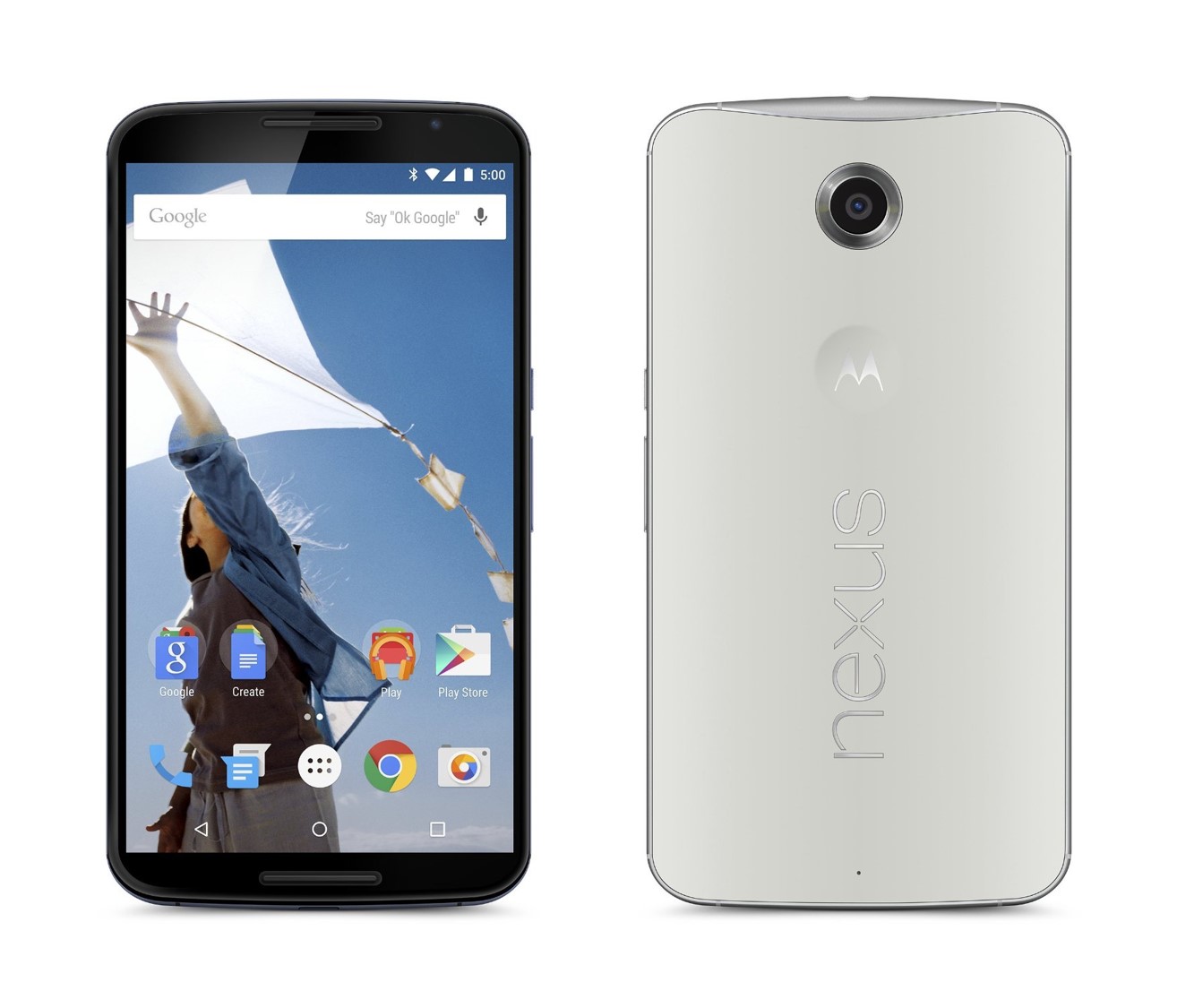
All top of the line phones today got good processors, ram, storage, battery etc. Galaxy S6 – Nexus 6 – Moto X Pure – LG G4. There are just too many other great phones from less popular brands like One Plus Two, Xiaomi Mi4 etc. However, I wanted to stick with the mainstream phone just yet because I learned in last few years that you also need a lot of community support if you need to play around the phone.
Importantly, I want qHD display similar or better than the LG G3. I like SD card slot and unlocked device. However, so far I only had 16 GB phone and 16 GB SD card in it. That way, if SD card is not an option, I can get by with 32 GB device.
I never had pure android experience as I never owned Nexus devices. However, I really like to try it especially since it will offer android updates as soon as google announce it. In fact, it will be updated for next few versions of android for sure. Android 6 update is already out for the Nexus 6.
Specification wise, Nexus 6 is top of the line device today. I do not need to list specifications here as I am sure you know it. It does not have SD card but comes with 32 GB memory. It has a qHD display and pure android. It has all that I need and now at the bargain price.
Google just announced Nexus 6P that bring this top of the line phone to nearly half the price it was selling for. It’s in $3xx range. That is an insane deal/ price for the Nexus 6. Go ahead and get one if you are in the market for the high-end unlocked android phone. You can’t beat this deal today.
Conclusion
Nexus 6 is the best android phone to buy today. It has powerful hardware and latest software- Android 6 (Over the air update is out already). Price is great and lowest it has been. Sure, you can wait and get for even lower but then it will be even older device and might be two generation old! So and get the Nexus 6 now.